Command Palette
The command palette is a one-stop search for apps, shortcuts, and commands (coming soon) in the DHIS2 instance. It is available for all users and across all apps.
Open the command palette
There are three (3) ways to open the command palette.
- Click the apps-icon (9 dots grid) to display it.

- Or, tab to the apps-icon, and press the Enter button.
- Or, press CMD/CTRL + K while anywhere within the DHIS2 instance.
Interface
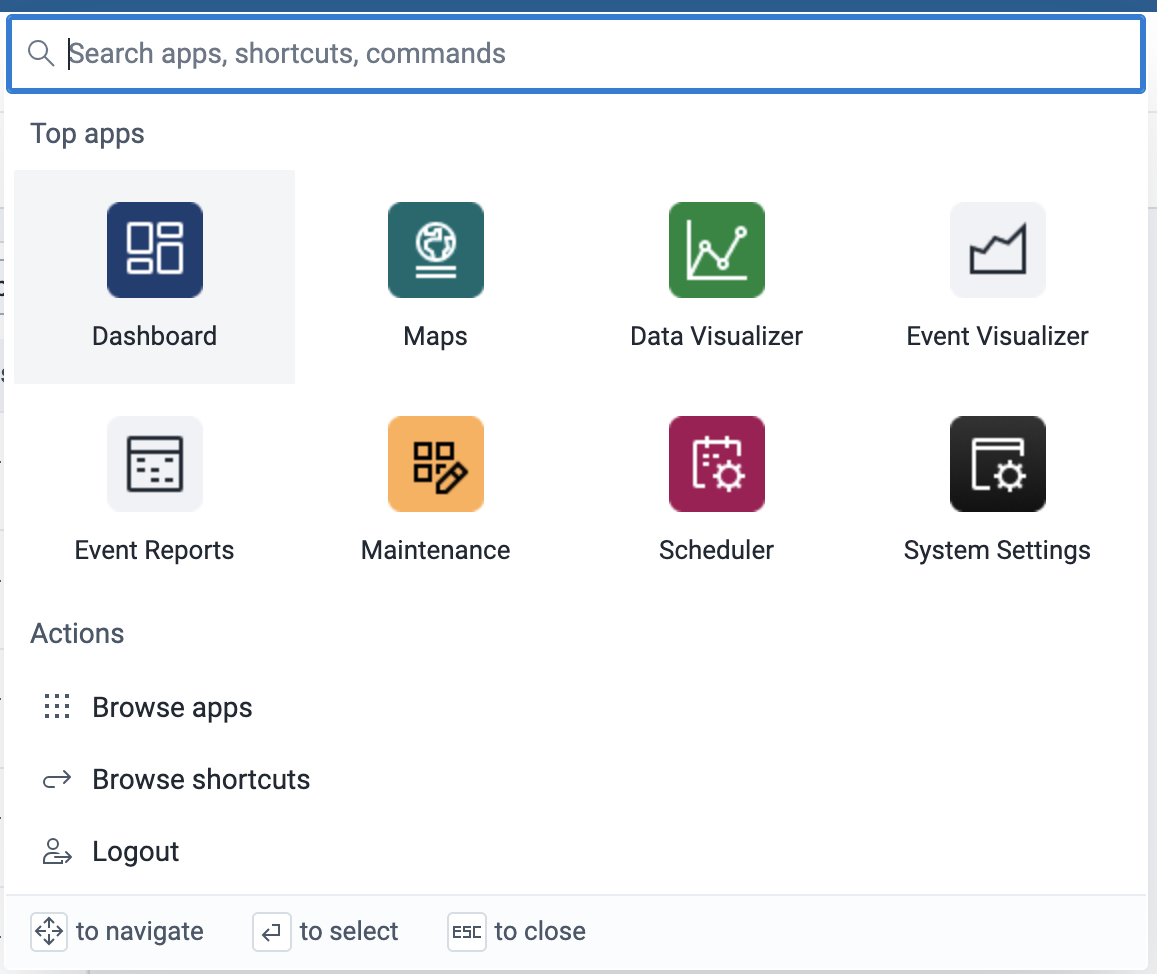
On launch, the command palette's interface has four (4) distinct features, i.e.
-
A search bar at the top that allows you to search across all items
-
A grid of the logged-in user's top 8 apps
-
A list of select actions with specific functions, i.e.
- Browse Apps - opens the list of all available apps.
- Browse Shortcuts - opens the list of all available shortcuts. This action only shows if there are any shortcuts.
- Logout - logs the user out.
-
Lastly, a key legend at the bottom that shows you what key to use while navigating the command palette.
Search in the command palette
- Search for any item using the search bar.
- Clear the search bar using the Backspace/Delete key or clicking the clear icon.
Browse Apps
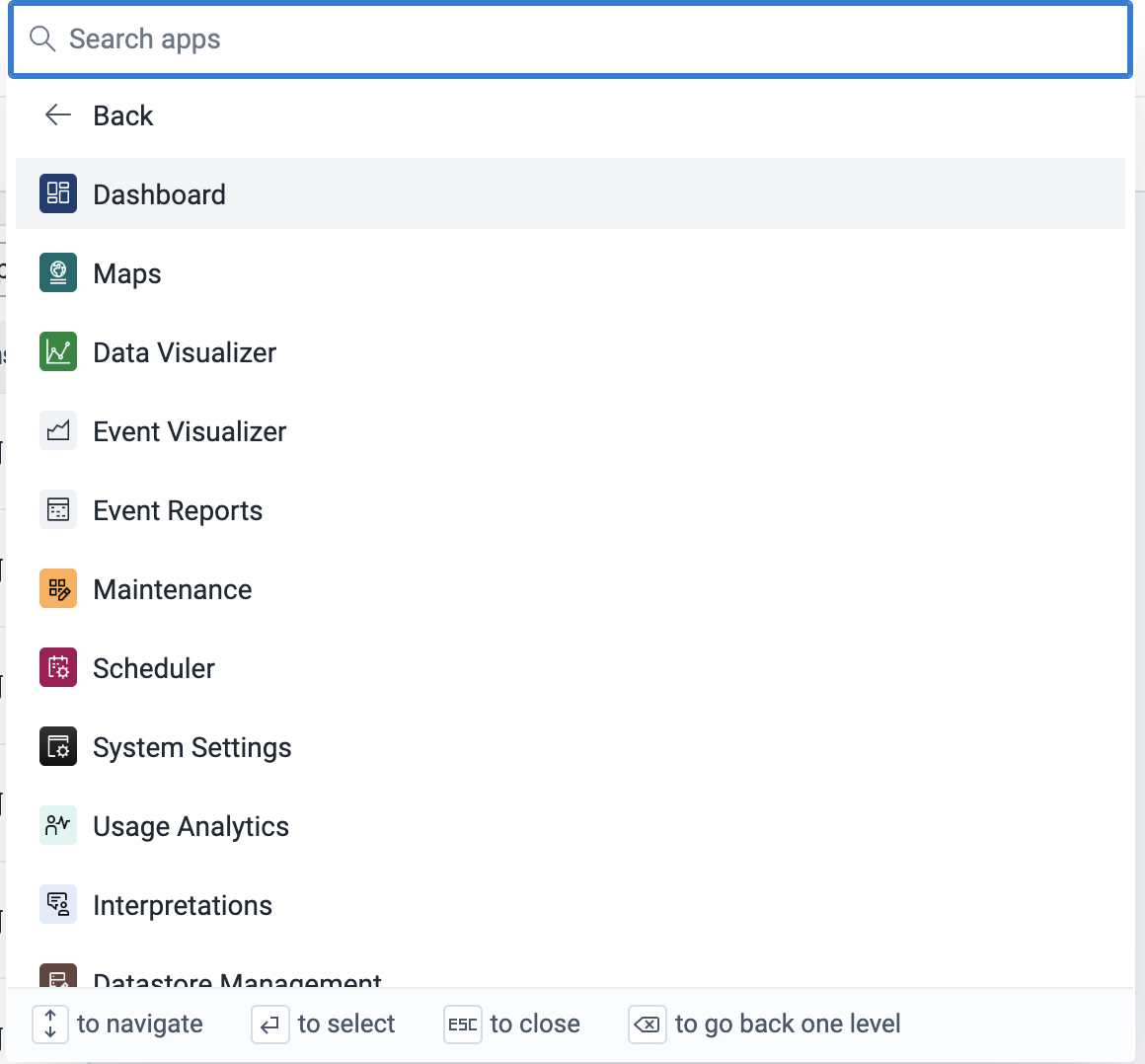
- To see a list of all the apps available on the instance, go to the Browse Apps action and click on it.
- You can search for only apps within that section.
- To go back to the main page, click on the Back arrow.
Browse Shortcuts
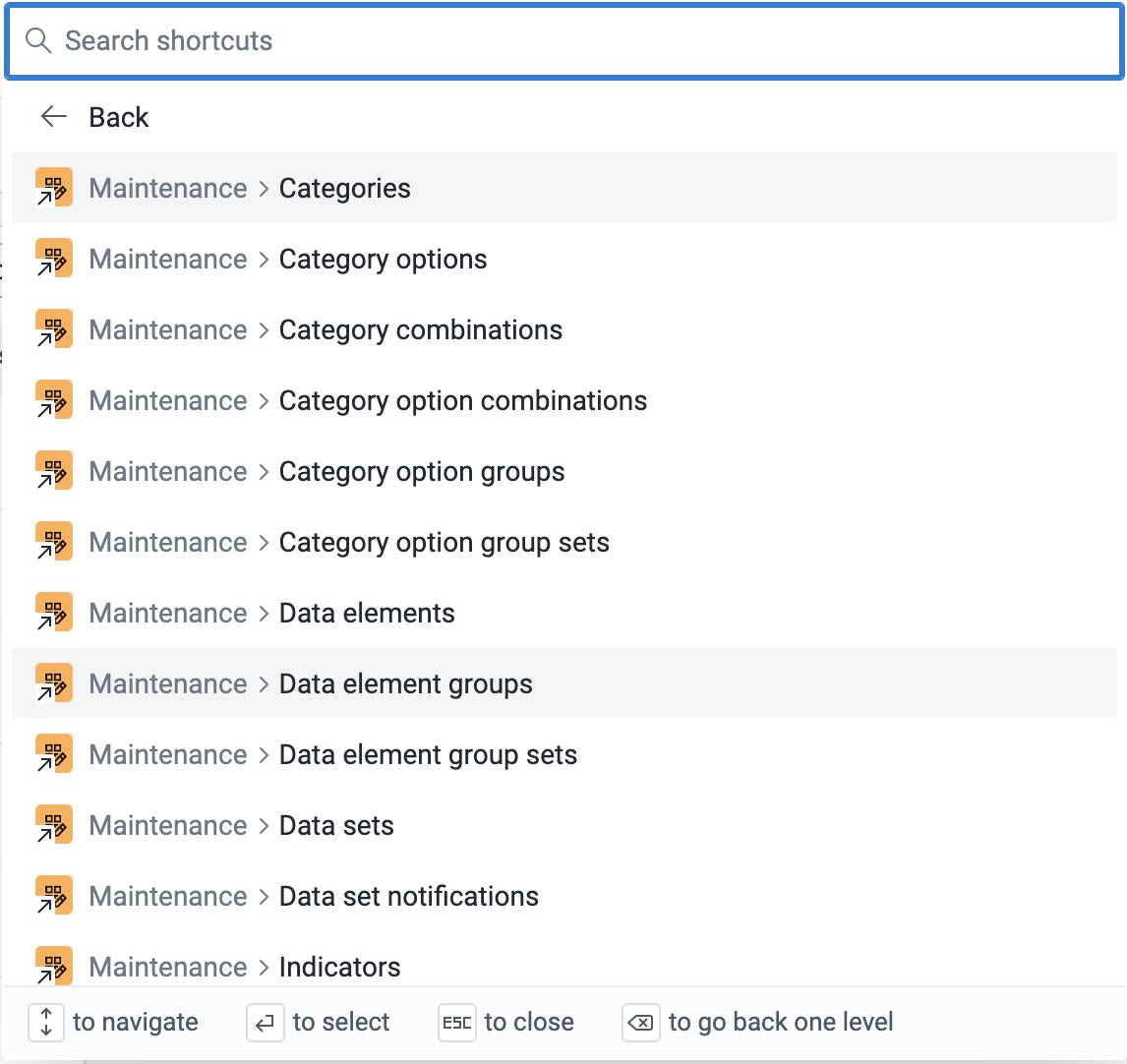
- To see a list of all the shortcuts available on the instance, go to the Browse Shortcuts action and click on it.
- You can search for only shortcuts within that section.
- To go back to the main page, click on the Back arrow.
Select an item
- Clicking an action activates it.
- Clicking an app or shortcut opens it.
- You can also open an app or shortcut in a new tab by pressing CMD/CTRL + clicking the item.
Navigate the command palette
You can use your keyboard to navigate the command palette. They include:
- Right, Left, Up and Down arrow keys for the grid
- Up and Down arrow keys for the list items
- Pressing Enter on an item opens/activates it.
- When on a category view (Apps and Shortcuts), pressing the Backspace button when the search bar is clear goes back to the main section.
Close the command palette
You can close the command palette in 3 ways:
- Press the Esc key,
- Or, click anywhere outside the command palette,
- Or, press CMD/CTRL + K while anywhere within the DHIS2 instance.